
The Jobs Calendar shows all upcoming planned and reactive jobs. The Jobs Calendar has numerous filters and viewing options to allow you view it in exactly the way you choose:

The Jobs Calendar view can be sorted by Date, Assigned User group, or by Resource.
The Jobs Calendar can also be filtered by day, week, month, agenda week / agenda day:

Note that within the monthly view, the calendar will expand to display up to ten jobs. If there are more than ten jobs scheduled for a particular day, you will be able to view all of these jobs by selecting the button.
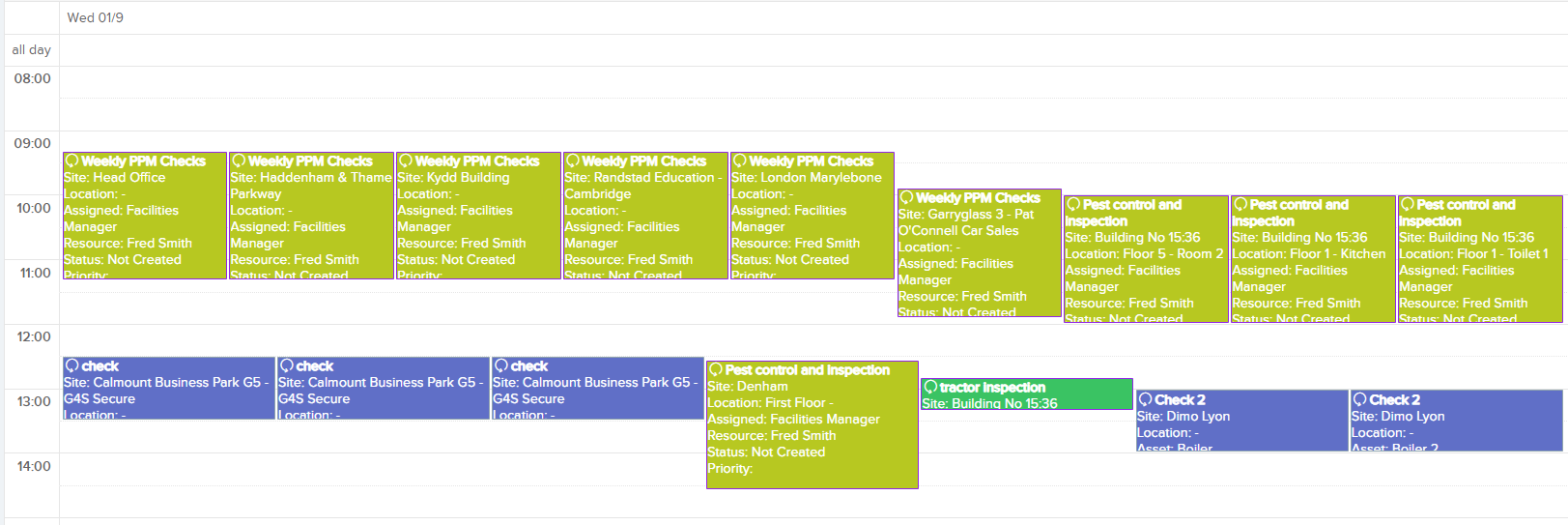
The button will open the daily view which will display all jobs for that day:
You can also search the Job Calendar by job number or job details by using the search bar which can be found next to the Day / Week / Month selector.
The Jobs Calendar has a date picker to the top-left of the calendar. The arrows can be used to scroll through the days / weeks / months, or you can use the drop-down date picker to pick a specific date.
A new view option for the Jobs Calendar is the Timeline view. The Timeline view will display the hours in the day across the x-axis. If grouping by Assigned User or Resource, the names will be displayed down the y-axis:
The selected calendar view can also be exported to a PDF.
While viewing the upcoming jobs for a particular month, the Trackplan calendar utilises a highly configurable drag and drop design that allows you to view and modify jobs at the click of a button (Note: This cannot be done with planned jobs):
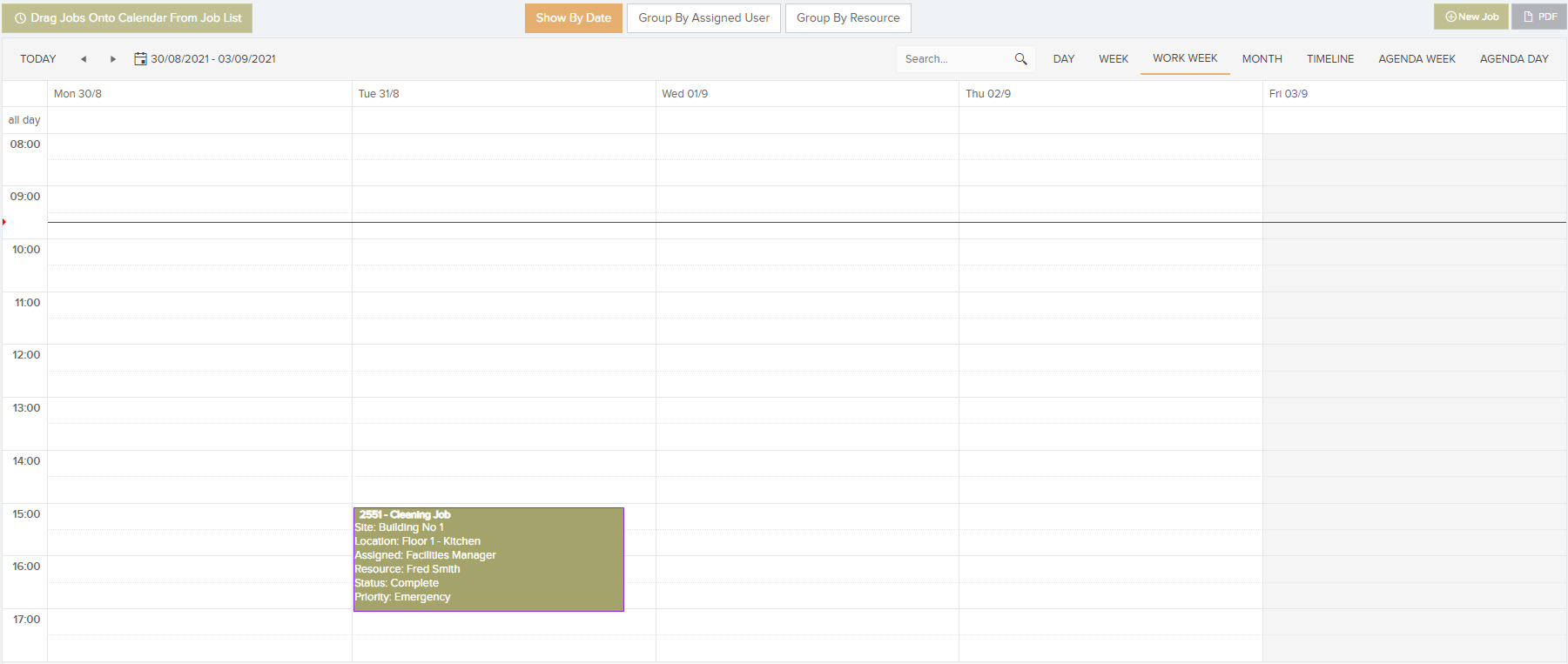
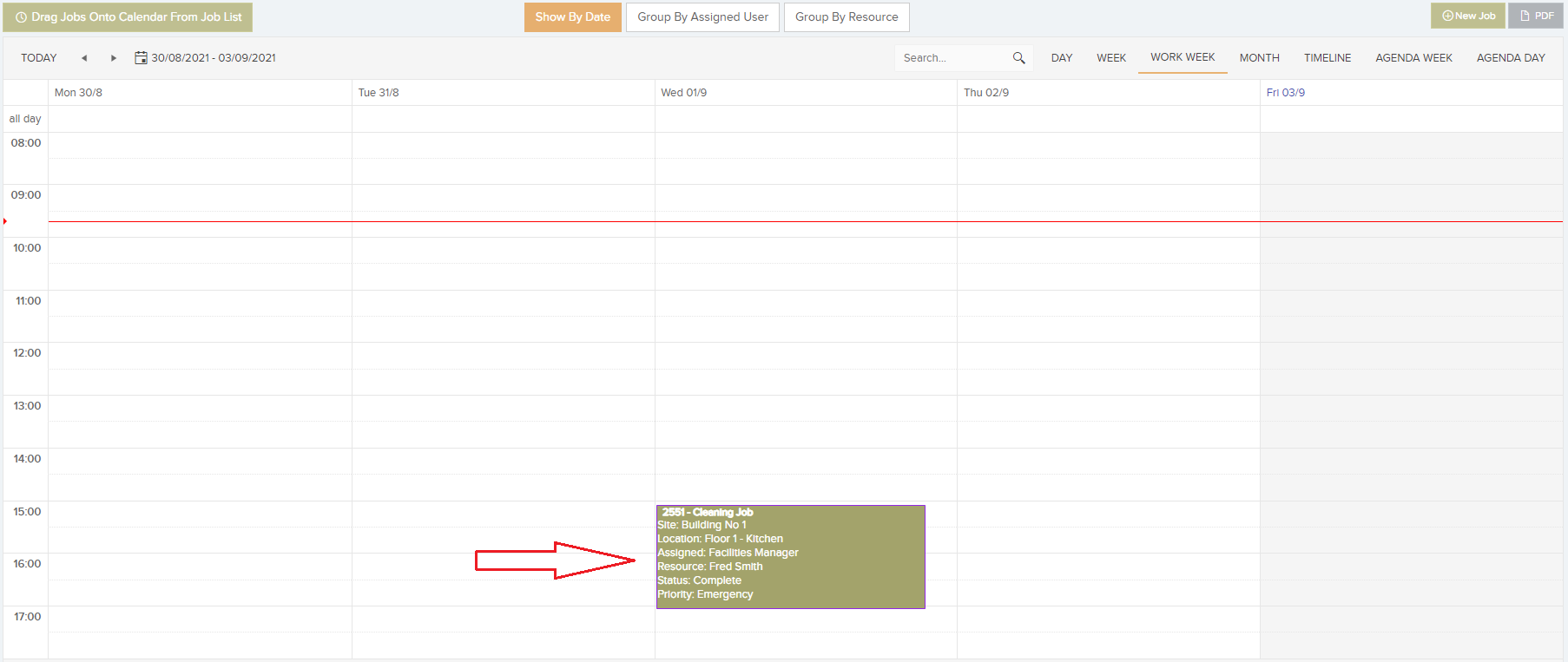
On top of being able to drag and drop jobs across the calendar, you can also drag jobs onto the calendar from the jobs list.
This button will open the jobs list at the top of the page:

This button will close the jobs list at the top of the page:
From here you can click and drag any of these jobs onto the Calendar:
Quick Actions
The new Quick actions button on the Tool-Tip will speed up the workflow by allowing the user to Unscheduled, Instruct, Complete Job, Change Expected Date and a link to the Job Details Page.
Create jobs in the calendar / scheduler
You can now add a job from the calendar. There are two ways.
– There is a “New Job” button there which brings up a pop up window.
– Even better, you can double-click in a calendar cell, which will bring up the pop-up window. The new job created will slot right into the cell you double-clicked.

